Network Tools on a Mac: Terminal, ping, traceroute and Lookups
0 / 6 steps
The goal
By the end you will have opened Terminal on a Mac, found your IP address, tested the connection with ping, traced the path to a website, looked up a domain, read your Wi-Fi signal, and made a double-click file that runs a network check.
Mac only. This is the Mac version of our Windows lessons. It was written from Apple and command documentation and has not been run on a Mac by a person yet, so some menu names may differ slightly on your version of macOS. If one does, tell us. Everything here only reads information or sends harmless test packetsIn plain words: A small parcel of data with an address on it. Everything you do online is sent as lots of tiny parcels.Technical: A unit of data with a header (addresses, TTL, protocol) and a payload. Large data is split into packets and reassembled at the destination.Click for the full glossary entry.
Words in this lesson
Hover (or tap and hold) a dotted word for a quick definition. Every word is also in the StashGrid glossary.
- Command prompt — a text window where you type instructions; on a Mac it is called Terminal
- ping — knock on another device’s door and time the answer
- Switch — an extra word that changes how a command works
- DHCP — how your Mac got its address
Why this lesson. Most of our network lessons show Windows. On a Mac the idea is the same, but the commands, the window and a few of the details are different. For example, a Mac keeps pinging forever until you stop it.
Windows says tracertIn plain words: Shows the road your data takes to a website, one stop at a time.Technical: The Windows traceroute command. Sends ICMP echo requests with rising TTL values so each router on the path reports back. Macs and Linux use traceroute.Click for the full glossary entry, Mac says traceroute, and both of them think the other one spells it wrong. — Nyx
Before you start. You need a Mac laptop or desktop. You do not need to be an administrator. The Mac window is called Terminal. It is built in; there is nothing to install.
Steps
01Open Terminal and make an icon
Hold Command and press Space to open Spotlight search. Type Terminal and press Return. A window opens with a line ending in % or $. That is where you type.
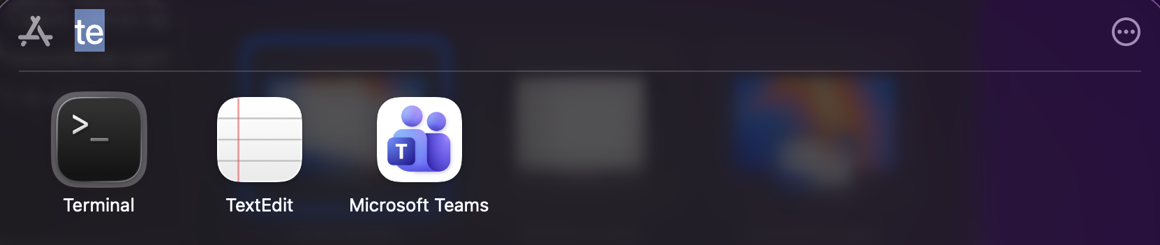
You can also use Finder → Applications → Utilities → Terminal, or open Launchpad and search for it.
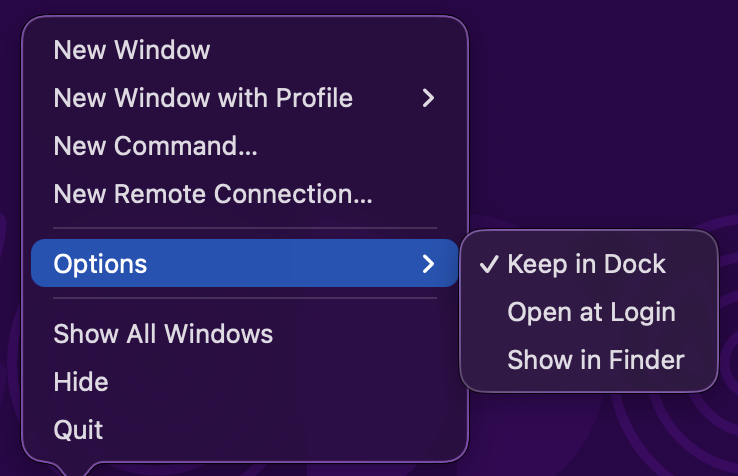
For a one-click icon: while Terminal is open, right-click its icon in the Dock, choose Options → Keep in Dock.
02Find your IP address
The click way: Apple menu → System Settings → Wi-Fi → Details next to your network. The IP addressIn plain words: A device’s street address on a network: four numbers separated by dots, like 192.168.1.37.Technical: A 32-bit number (IPv4), written as four octets. It combines which network the device is on and which device it is on that network.Click for the full glossary entry is listed there.
The Terminal way:
> ipconfig getifaddr en0
This prints your address on Wi-Fi (on most Mac laptops Wi-Fi is en0). If it prints nothing, try en1, or use the click way. ifconfig prints everything but is long.
Why this matters. Your address is the start of the subnetting and DHCP lessons. To renew a DHCPIn plain words: The front desk of your network. When a phone or laptop joins, DHCP hands it an address, like a hotel handing you a room key, so nobody types it in by hand.Technical: Dynamic Host Configuration Protocol. A service, normally on your router, that leases each device an IP address, subnet mask, gateway and DNS server automatically.Click for the full glossary entry leaseIn plain words: An address that is lent to you for a while, like a library book you have to renew.Technical: The time a DHCP server lets a device keep an address before it must renew. Home routers often use hours to a day.Click for the full glossary entry on a Mac, use System Settings → Wi-Fi → Details → TCP/IP → Renew DHCP Lease.
03Test the connection with ping
Mac and Linux keep sending test packetsIn plain words: A small parcel of data with an address on it. Everything you do online is sent as lots of tiny parcels.Technical: A unit of data with a header (addresses, TTL, protocol) and a payload. Large data is split into packets and reassembled at the destination.Click for the full glossary entry until you stop them. Ask for four, like Windows does:
> ping -c 4 1.1.1.1
You should see four replies with a time in ms, then a summary showing how many packets were lost. If you forget the -c 4, press Control + C to stop it.
Why this matters. Replies from 1.1.1.1 (a public service) prove you can reach the internet by number, even if names are not working. That splits “no internet” from “DNSIn plain words: The internet’s phone book. You type an easy name like stashgrid.ai, and DNS looks up the number address that computers really use, the way a street address tells the mail carrier where to go.Technical: Domain Name System. A worldwide set of servers that turns names into IP addresses. Your device asks a DNS server (usually your router or your provider) every time you visit a site.Click for the full glossary entry is broken.”
04Trace the path with traceroute
The Mac command is traceroute (not tracertIn plain words: Shows the road your data takes to a website, one stop at a time.Technical: The Windows traceroute command. Sends ICMP echo requests with rising TTL values so each router on the path reports back. Macs and Linux use traceroute.Click for the full glossary entry):
> traceroute -n -m 15 example.com
It works like the Windows one, hopIn plain words: One stop along the road between you and a website, like one town on a road trip.Technical: One router-to-router jump. A path of 12 hops passes through 12 routers or gateways.Click for the full glossary entry by hop, with three times per hop. The difference: by default a Mac sends UDP packetsIn plain words: A small parcel of data with an address on it. Everything you do online is sent as lots of tiny parcels.Technical: A unit of data with a header (addresses, TTL, protocol) and a payload. Large data is split into packets and reassembled at the destination.Click for the full glossary entry rather than ICMPIn plain words: The internet’s way of sending tiny “are you there?” and “that did not arrive” notes between devices.Technical: Internet Control Message Protocol. Carries status and error messages. ping and tracert both use it. Some routers and firewalls ignore it on purpose, so silence is not always a fault.Click for the full glossary entry, so some routers answer differently. Switches you will use:
- -n — no name lookups. Faster, cleaner.
- -m number — maximum hops.
- -w seconds — how long to wait for each reply. On a Mac this is in seconds, unlike Windows.
- -q number — how many test packets per hop (the default is 3).
- -I — use ICMP like Windows does. On some versions this needs an administrator password.
Read the output as in the Windows traceroute lesson: hop number, three times, then who answered. Lines of * * * are not automatically a problem.
05Look up who owns a domain
A Mac includes whois:
> whois example.com
For the modern RDAPIn plain words: A modern lookup for “who registered this website name, and when?” The most useful part is the date, because brand-new names are a warning sign.Technical: A standard, web-based (HTTPS and JSON) replacement for whois. Gives registration dates, registrar, name servers and status in a consistent format.Click for the full glossary entry version, use curlIn plain words: A small tool that fetches a web address for you from the command prompt and prints what comes back, like a browser with no window.Technical: A command-line program for transferring data over HTTP and other protocols. Built into current Windows (as curl.exe), macOS and Linux.Click for the full glossary entry and save the answer, then open it and search for registration:
> curl -sL https://rdap.org/domain/example.com -o rdap.txt
> open -e rdap.txt
See Who owns this website for how to read the answer and use it on suspicious emails.
06Read your Wi-Fi signal, and make a one-click file
Wi-Fi signal: hold the Option key and click the Wi-Fi icon in the menu bar at the top. It shows your connection details, including the signal strength (RSSI, in dBmIn plain words: How strong the Wi-Fi signal is. The number is negative, and closer to zero is stronger.Technical: Decibels relative to a milliwatt. Around −50 is excellent, −67 is good for video, −80 is weak, −90 is unusable.Click for the full glossary entry: closer to zero is stronger, and about −67 is good for video), the channelIn plain words: Wi-Fi uses lanes of radio. If your neighbour is in the same lane, you slow each other down.Technical: 2.4 GHz and 5 GHz are bands, split into channels. On 2.4 GHz only 1, 6 and 11 do not overlap.Click for the full glossary entry and the speed. Option-click also offers Open Wireless Diagnostics for deeper tests.
One-click network check. The Mac version of a Windows .bat fileIn plain words: A saved to-do list for the computer. Double-click it and it does the steps in order.Technical: A plain-text script of command prompt commands, run in sequence. It can run anything, so only run ones you wrote or have read.Click for the full glossary entry is a .command file. In Terminal, run:
> nano ~/Desktop/netcheck.command
Paste this in:
#!/bin/bash
echo "===== Your address ====="
ipconfig getifaddr en0
echo
echo "===== Can I reach the internet? ====="
ping -c 4 1.1.1.1
echo
echo "===== Path to a website ====="
traceroute -n -m 15 -w 1 example.com
echo
read -n 1 -s -r -p "Press any key to close"
Press Control + O, then Return, then Control + X to save and leave. Then make it runnable:
> chmod +x ~/Desktop/netcheck.command
Double-click netcheck.command on the desktop. If macOS says it cannot verify the file, right-click it and choose Open the first time.
Stay safe. Like a Windows .bat file, a .command file can run anything. Only run ones you wrote or read yourself, and never one that arrived by email or download.
What you learned
- Command + Space, Terminal — how to open Terminal
- ping -c 4 — a Mac pings forever unless you limit it
- traceroute — the Mac and Linux version of tracertIn plain words: Shows the road your data takes to a website, one stop at a time.Technical: The Windows traceroute command. Sends ICMP echo requests with rising TTL values so each router on the path reports back. Macs and Linux use traceroute.Click for the full glossary entry, UDP by default
- whois and RDAP — who owns a domainIn plain words: The easy-to-read name of a website or email sender, like example.com. In an email from sam@example.com, the domain is the part after the @.Technical: A name registered in the global naming system, made of labels separated by dots, and resolved to addresses by DNS.Click for the full glossary entry, and when it was registered
- Option-click Wi-Fi — instant signal and channel details
- .command file — the Mac version of a .bat file
Tried it? Tell us
Nova drafted this lesson from Steven’s ideas. If a step broke, looked different on your screen, or you know a simpler way, tell us. Screens change between Windows and Mac versions, so your menus may not match exactly.
Go deeper
- Open a command prompt on Windows — the Windows twin of step 1
- Networking glossary — plain-English definitions
Written from Apple and command documentation. It has not been run on a Mac by a person, so the menu names are the ones Apple documents rather than ones we have clicked through. If something does not match what your computer does, tell me and I will fix it.