Read Email Headers and Report Phishing (Gmail, Outlook, Apple Mail)
0 / 5 steps
The goal
By the end you will know how to open the hidden header of an email, read the five lines that matter, see whether the sender passed the authenticity checks, and report a phishing email the right way.
Open the headerIn plain words: The hidden “envelope” of an email that shows where it really came from. The name you see on top can be faked; the envelope is much harder to fake.Technical: Metadata lines (From, Reply-To, Return-Path, Received, Authentication-Results) added by the sender and each mail server along the way.Click for the full glossary entry, not the links. Viewing headers is safe. It only shows text. Do not click links or open attachments in the message while you investigate.
Words in this lesson
Hover (or tap and hold) a dotted word for a quick definition. Every word is also in the StashGrid glossary.
- Phishing — a fake message that tricks you into giving up a password or money
- Email header — the hidden envelope that shows where an email really came from
- SPF, DKIM, DMARC — checks that ask: did this really come from that company?
- Domain name — the part of an address after the @ sign
Why this lesson. The sender name on top of an email is just a label anyone can type. The header is the envelope: it records the servers the message passed through and whether the sender proved who they were. Reading it is how you tell a real email from a fake one. Reporting it protects the next person who gets the same message.
Anyone can write “From: Your Bank.” Nobody can fake the postmarks on the envelope as easily. Learn to read the postmarks. — Nyx
Before you start. Pick an email to practise on. A real one from a company you use is best, so you can see what a good header looks like. If you already looked up the sender, the domain lookup lesson comes first.
Steps
01Know what a header is
Every email has two parts: the message you read, and a block of technical lines above it called the headerIn plain words: The hidden “envelope” of an email that shows where it really came from. The name you see on top can be faked; the envelope is much harder to fake.Technical: Metadata lines (From, Reply-To, Return-Path, Received, Authentication-Results) added by the sender and each mail server along the way.Click for the full glossary entry. Your email app hides the header because most people never need it. Think of the letter and the envelope with its postmarks.
The header tells you who it says it is from, which address replies would really go to, every server it travelled through, and whether the sender passed three anti-forgery checks (SPFIn plain words: Three checks that ask: did this email really come from the company it says it did? A “fail” is a warning sign.Technical: SPF lists servers allowed to send for a domain, DKIM is a digital signature on the message, and DMARC says what to do if either fails. Shown as pass or fail in the header.Click for the full glossary entry, DKIM and DMARC).
Why this matters. A scammer controls the label on the message. They do not fully control the postmarks.
02Open the full header
Open the email (without clicking anything in it), then use your app’s way to show the full headerIn plain words: The hidden “envelope” of an email that shows where it really came from. The name you see on top can be faked; the envelope is much harder to fake.Technical: Metadata lines (From, Reply-To, Return-Path, Received, Authentication-Results) added by the sender and each mail server along the way.Click for the full glossary entry. Menu names change over time, so if yours differs, look for a menu that says Show original, View source or Message details.
- Gmail (web): open the message, click the three dots (More) at the top right of the message, then Show original. A new tab opens with a summary at the top.
- Outlook on the web (Outlook.com): open the message, click the three dots, then View → View message source (or View message details).
- Outlook for Windows (classic): double-click the message to open it in its own window, choose File → Properties, and read the Internet headers box.
- Apple Mail (Mac): select the message, then choose View → Message → All Headers (or Raw Source).
- Phone apps: the app often hides this. Open the same email in a web browser on a computer.
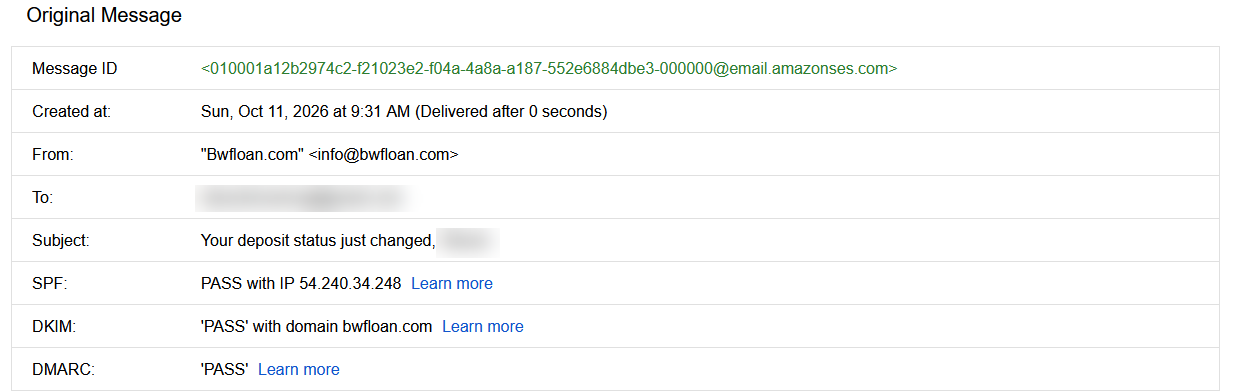
03Read the five lines that matter
The headerIn plain words: The hidden “envelope” of an email that shows where it really came from. The name you see on top can be faked; the envelope is much harder to fake.Technical: Metadata lines (From, Reply-To, Return-Path, Received, Authentication-Results) added by the sender and each mail server along the way.Click for the full glossary entry looks like a wall of text. You only need five lines:
- From — who it claims to be from. Check the domainIn plain words: The easy-to-read name of a website or email sender, like example.com. In an email from sam@example.com, the domain is the part after the @.Technical: A name registered in the global naming system, made of labels separated by dots, and resolved to addresses by DNS.Click for the full glossary entry after the @.
- Reply-To — where a reply would really go. If it is a different domain from the From line, be suspicious.
- Return-Path — where bounce messages go; it often shows the real sending domain.
- Received — one line per server the message passed through. They are stacked newest on top, oldest at the bottom, so read from the bottom up to follow the trip.
- Authentication-Results (or the summary Gmail shows at the top) — look for spf=pass, dkim=pass, dmarc=pass. A fail on these for a message claiming to be from a big company is a strong warning.
Pass is not a gold star. Criminals can pass these checks for their own domain. What matters is whether it passes for the domain it claims to be. A message from yourbank-alerts.net that passes is a perfectly authenticated message from yourbank-alerts.net, which is not your bank. — Nyx
Why this matters. From mismatched with Reply-To, a failing check, and a sender domain that does not match the company are the three classic signs.
04Report it
Reporting teaches your email provider to block the next one. Use the built-in button first.
- Gmail: open the message, click the three dots, then Report phishing.
- Outlook on the web: select the message, click Report in the toolbar, then Report phishing.
- Outlook for Windows: use the Report Message button on the Home tab if you have it, or Forward as attachment to your IT team if it is a work account.
- Apple Mail and iCloud: move it to Junk. For iCloud mail you can also forward it to the address Apple lists for reporting.
Then, optionally:
- Forward the message to the Anti-Phishing Working Group at reportphishing@apwg.org.
- In the United States, report it at reportfraud.ftc.gov.
- For text messages, forward the text to 7726 (it spells SPAM).
- If it pretends to be a company, that company usually has a “report a scam” page.
After you have reported it, delete it. Report addresses and menus change, so if one does not work, search for “report phishingIn plain words: A fake email, text or website that pretends to be someone you trust, like your bank, to trick you into giving up a password or money.Technical: Social engineering by message. Typical signs are urgency, a mismatched sender domain, a link that does not go where it says, and a request for credentials or payment.Click for the full glossary entry” plus your provider’s name.
The defender’s move. Reporting is how a single person helps thousands. Mail providers and the APWG turn reports into blocklists.
05If you already clicked
It happens to everyone, including professionals. Move fast and calmly.
- Change the password of the account you typed it into, from a different device if you can, and anywhere else you used the same password.
- Turn on two-step sign-in (also called two-factor) for that account.
- If it involved a bank card or payment, call the number on the back of your card, not one from the email.
- If you opened an attachment, run your computer’s antivirus scan, and ask someone you trust to look at the computer.
- Tell the people in your house. Scammers often try the whole family.
Why this matters. The speed of your reaction matters more than the click itself. Most damage happens when people stay quiet out of embarrassment.
What you learned
- header — the hidden envelope of an email
- From vs Reply-To — mismatched domains are suspicious
- Received — read from the bottom up to follow the trip
- SPF, DKIM, DMARC — pass or fail checks on the sender; a pass only proves the claimed domainIn plain words: The easy-to-read name of a website or email sender, like example.com. In an email from sam@example.com, the domain is the part after the @.Technical: A name registered in the global naming system, made of labels separated by dots, and resolved to addresses by DNS.Click for the full glossary entry
- Report phishing — use the built-in button, then optionally forward to reportphishing@apwg.org
Tried it? Tell us
Nova drafted this lesson from Steven’s ideas. If a step broke, looked different on your screen, or you know a simpler way, tell us. Screens change between Windows and Mac versions, so your menus may not match exactly.
NextWhat Happens When You Type a URL→
Go deeper
- Who owns this website — check the sender’s domain age
- Networking glossary — phishingIn plain words: A fake email, text or website that pretends to be someone you trust, like your bank, to trick you into giving up a password or money.Technical: Social engineering by message. Typical signs are urgency, a mismatched sender domain, a link that does not go where it says, and a request for credentials or payment.Click for the full glossary entry, headerIn plain words: The hidden “envelope” of an email that shows where it really came from. The name you see on top can be faked; the envelope is much harder to fake.Technical: Metadata lines (From, Reply-To, Return-Path, Received, Authentication-Results) added by the sender and each mail server along the way.Click for the full glossary entry, SPFIn plain words: Three checks that ask: did this email really come from the company it says it did? A “fail” is a warning sign.Technical: SPF lists servers allowed to send for a domain, DKIM is a digital signature on the message, and DMARC says what to do if either fails. Shown as pass or fail in the header.Click for the full glossary entry and more
Original walkthrough written from the providers’ documented menus. None of the menus has yet been clicked through on every email app, so if a name differs on your screen, tell me. If something does not match what your computer does, tell me and I will fix it.