Parrot OS 7.4 vs Kali 2026.3: What’s Actually Different (Tested)
0 / 9 steps
The goal
Run Parrot Security 7.4 and Kali Linux 2026.3 side by side and settle “which one should I use?” with evidence instead of forum opinions. You will compare how each one updates, why the same tool has a different version on each, how they bundle their tools, and then open up Parrot’s best-known extra, AnonSurf, and read exactly what it changes on a machine before anyone runs it.
Your own machine only. Both systems run as throwaway Docker containers on your own computer. Nothing is scanned or attacked, and AnonSurf is only downloaded and read, never switched on. Step 9 deletes everything.
Why this lab. Parrot and Kali are both Debian-based and share most of their tools, so the real differences are in how they are built and updated. Those differences decide whether a tool works on day one, whether an update breaks your lab, and what your laptop is quietly doing to the network. Reading a privacy tool before trusting it is the same habit a defender uses on any script that asks for root.
I read AnonSurf’s insides before running it. Nova called it the most blue-team thing I’ve ever done and made a cake. — Nyx
Before you start. You need Docker (Docker Desktop on Windows or Mac, or sudo apt install docker.io on Ubuntu). Each container is a few hundred megabytes. Commands run as root inside the containers, so the prompt is #.
Steps
01Start Parrot and Kali side by side
Open two terminal windows. Start Parrot in the first and Kali in the second, then refresh the package lists in both.
Terminal 1 (Parrot):
# docker run -it --name parrot parrotsec/core bash
# apt update
Terminal 2 (Kali):
# docker run -it --name kali kalilinux/kali-rolling bash
# apt update
From here on, run each command in both terminals unless the step says otherwise.
02Ask each one what it is
# grep -E "PRETTY|VERSION_ID|DEBIAN_VERSION" /etc/os-release
PRETTY_NAME="Parrot Security 7.4 (echo)"
VERSION_ID="7.4"
DEBIAN_VERSION_FULL=13.6
PRETTY_NAME="Kali GNU/Linux Rolling"
VERSION_ID="2026.3"

Reading it. Parrot gives a release number and tells you it is built on Debian 13.6, the current stable Debian. Kali calls itself Rolling: 2026.3 is just the name of the latest snapshot, not a fixed base. That one line is the biggest difference between the two, and the next two steps show what it means in practice.
03Compare how they update
# apt-cache policy | grep -oE "release o=[^,]+,a=[^,]+" | sort -u
release o=Parrot,a=parrot
release o=Parrot,a=parrot-backports
release o=Parrot,a=parrot-security
release o=Kali,a=kali-rolling
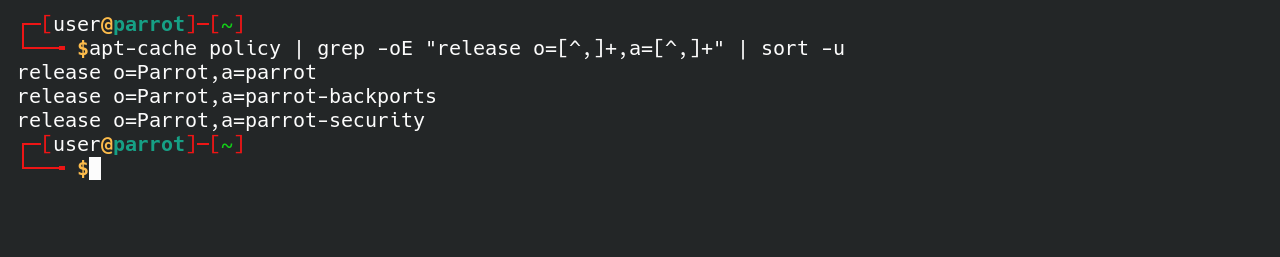
Reading it. Parrot pulls from three branches: the main release, a separate security branch for fixes, and backports for newer versions of selected tools. That is the Debian stable model: the base stays put and fixes arrive on top. Kali has a single kali-rolling branch: everything moves forward together, all the time. Stable means fewer surprises after an update; rolling means newer tools sooner and the occasional broken dependency after apt full-upgrade.
04Same tool, different version
# apt-cache policy nmap tor | grep -E "^[a-z]|Candidate"
nmap:
  Candidate: 7.95+dfsg-3
tor:
  Candidate: 0.4.9.14-0+deb13u1
nmap:
  Candidate: 7.991+dfsg-1kali1
tor:
  Candidate: 0.4.9.14-1
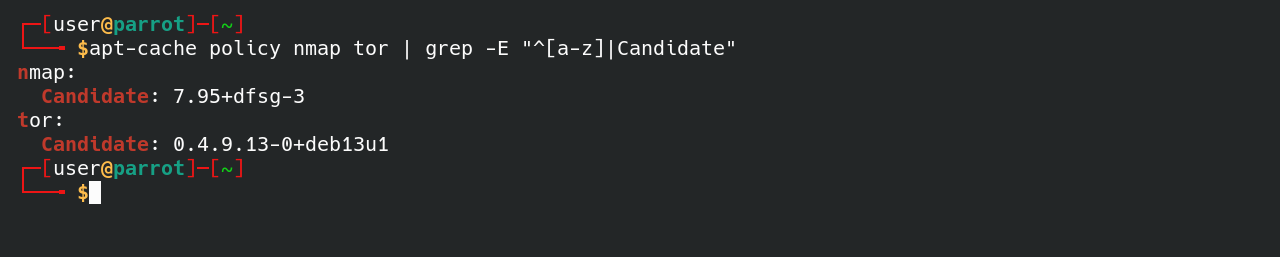
Reading it. nmap is 7.95 on Parrot (the Debian 13 package) and 7.991 on Kali, which packages new releases itself (the kali1 tag). tor is the same 0.4.9.14 on both, but Parrot’s copy carries +deb13u1: a Debian security update applied to the stable version. When a write-up says “use the new flag in nmap 7.99,” this is why it works on one and not the other. Always check apt-cache policy before blaming the tutorial.
05Compare the tool bundles
# apt-cache search --names-only "^parrot-tools-|^kali-linux-" | cut -d" " -f1
parrot-tools-ai
parrot-tools-automotive
parrot-tools-cloud
parrot-tools-forensics
parrot-tools-full
parrot-tools-infogathering
...
parrot-tools-web
parrot-tools-wireless
kali-linux-core
kali-linux-default
kali-linux-everything
kali-linux-firmware
kali-linux-firmware-graphics
kali-linux-headless
kali-linux-labs
kali-linux-large
kali-linux-nethunter
kali-linux-wsl

Reading it. Parrot groups its tools by job: install only parrot-tools-forensics or parrot-tools-web. Kali groups them by size: core, default, large, everything. Neither container comes with the tools installed, which is why the images are small. Parrot now has an AI bundle (parrot-tools-ai); Kali has kali-linux-labs, a set of deliberately vulnerable practice apps meant for your own machine only.
06Download AnonSurf without installing it
Parrot terminal only. AnonSurf is Parrot’s “send everything through Tor” switch. Fetch the package file and list what is in it. Nothing is installed or switched on.
# cd /tmp && apt download anonsurf
# dpkg -c anonsurf_*.deb | grep -E "etc/|systemd/|bin/" | awk '{print $6}'
./etc/
./etc/anonsurf/
./etc/anonsurf/anonsurf.cfg
./etc/anonsurf/bridges.txt
./etc/anonsurf/onion.pac
./lib/systemd/
./lib/systemd/system/
./lib/systemd/system/anonsurf-identity.service
./lib/systemd/system/anonsurf-recovery.service
./lib/systemd/system/anonsurfd.service
./lib/systemd/system/tor@default.service.d/
./lib/systemd/system/tor@default.service.d/anonsurf-recovery.conf
./usr/bin/
./usr/bin/dnstool
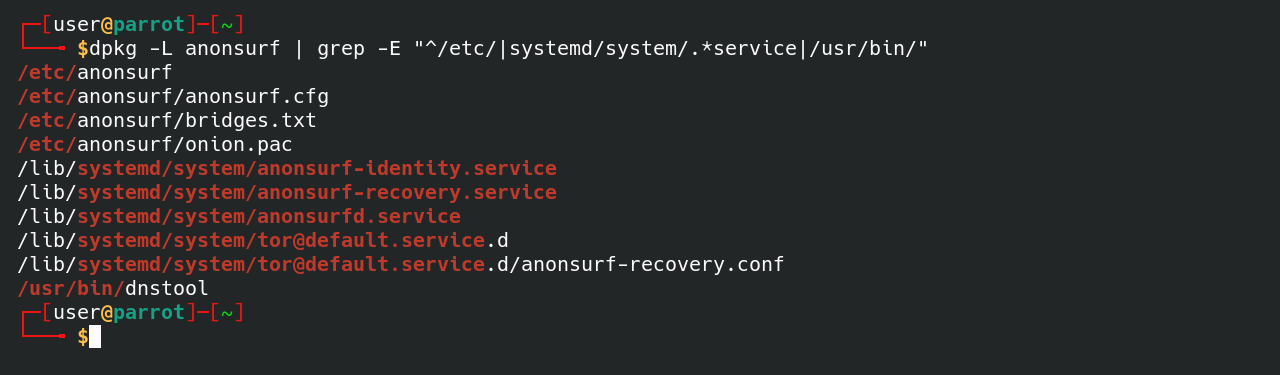
Reading it. Lines ending in / are folders. The version is 6.0.1 (in the file name). AnonSurf 6.0, new in Parrot 7.4, runs as systemd services: one does the routing, one gets you a new Tor identity, and a recovery service puts your network settings back if the machine crashes while AnonSurf is on. A tool that needs a recovery service is a tool that changes things deep in your system, so the next step looks at what.
07Read its settings
Parrot terminal only. Unpack the files into a folder (still not installing) and read the config.
# dpkg -x anonsurf_*.deb anonsurf
# grep -E "plain|sandbox|bridge" anonsurf/etc/anonsurf/anonsurf.cfg
use_sandbox=false
bridge_address=""
auto_bridge=false
reject_plain_port=false
list_plain_ports="23,109,110,143"
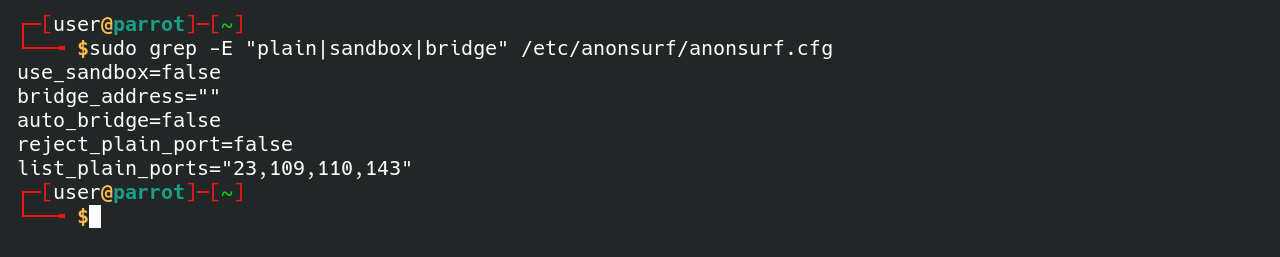
Reading it. Ports 23, 109, 110 and 143 are Telnet, POP2, POP3 and IMAP: old protocols that send passwords in plain text. Through Tor, the last computer in the chain (the exit node) is run by a stranger and can read anything unencrypted. AnonSurf warns about those ports by default but does not block them (reject_plain_port=false). Bridges are for networks that block Tor; they are off by default.
08See what it changes on your system
Parrot terminal only. The main program is compiled, but you can still search it for the settings it writes.
# grep -aoE "TransPort [0-9.:]+|DNSPort [0-9.:]+|disable_ipv6|iptables-restore|/run/anonsurf/active" anonsurf/usr/lib/anonsurf/anondaemon | sort -u
/run/anonsurf/active
DNSPort 127.0.0.1:53
TransPort 127.0.0.1:9040
disable_ipv6
iptables-restore

Reading it. When AnonSurf is on, it makes Tor listen on port 9040 and uses firewall rules (iptables) to force all traffic there; it answers DNS itself on 127.0.0.1 so lookups go through Tor too; it turns off IPv6 so nothing slips out around Tor; and it drops a marker file at /run/anonsurf/active. It backs up your firewall rules first and restores them when you switch it off.
| To tell if AnonSurf is on (a lab Parrot machine) | What you would see |
|---|---|
| systemctl is-active anonsurfd | active |
| ls /run/anonsurf/active | the file exists |
| iptables -t nat -S | grep 9040 | rules sending traffic to port 9040 |
| cat /etc/resolv.conf | nameserver 127.0.0.1 |
What it doesn’t hide. Tor hides your IP address, not who you are: log in to an account and the site knows it’s you. The list of Tor exit addresses is public, so many sites and company firewalls block or flag them; to a SOC, traffic from a Tor exit is a signal, not invisibility. The checklist above comes from the package files; we read AnonSurf but did not run it inside a container.
09Pick one and clean up
| Parrot Security 7.4 | Kali Linux 2026.3 | |
|---|---|---|
| Base | Debian 13 stable | Rolling (moves every day) |
| Updates | Fewer surprises, security branch | Newest tools first, occasional breakage |
| Tool bundles | By job (web, forensics, AI…) | By size (core, default, large, everything) |
| Extras | AnonSurf, a full desktop for daily use | Practice labs bundle, NetHunter for phones |
| Good fit | One laptop for study and everyday use | A dedicated VM that follows new tool releases |
For a home lab, either works, and nothing stops you running both. Type exit in each terminal, then remove the containers from your normal terminal:
# docker rm -f parrot kali
Add docker rmi parrotsec/core kalilinux/kali-rolling if you want the disk space back too.
What you learned
- Stable vs rolling — Parrot sits on Debian 13 with a security branch; Kali moves forward on one rolling branch
- apt-cache policy — the quick way to see which version (and which branch) a tool will come from
- Bundles — Parrot’s parrot-tools-* are by job; Kali’s kali-linux-* are by size
- AnonSurf 6.0 — forces traffic and DNS through Tor with firewall rules, turns off IPv6, and restores your settings afterwards
- Read before you run — apt download, dpkg -c and dpkg -x show what a package will change without installing it
Tried it? Tell us
Nova built this lab from Steven’s idea, and we ran every command above in fresh Parrot 7.4 and Kali 2026.3 containers before publishing. If an output looks different for you, or a newer release changed something, tell us. Ideas for the next lab are welcome too — no promises on timing.
NextKali 2026.3’s six new tools, and what they leave in your logs→
Go deeper
- Kali 2026.3 new tools lab — the rolling side in action
- Nmap cheat sheet — works the same on both, on machines you own
- Parrot OS 7.4 released with AnonSurf 6.0 (Linuxiac) — summary of the 3 October 2026 release
Original walkthrough. Every command with output was run on 28 Oct 2026 in fresh parrotsec/core (Parrot Security 7.4, Debian 13.6) and kalilinux/kali-rolling (2026.3) containers; AnonSurf 6.0.1+parrot2 was downloaded and unpacked but not run. Outputs are from that run, trimmed where marked with .... Package versions change over time, Kali’s fastest. If something doesn’t match your machine, tell me and I will fix it.