How to Open a Command Prompt on Windows (3 Easy Ways)
0 / 5 steps
The goal
By the end you will have opened a command promptIn plain words: A window where you type instructions instead of clicking. The shortcut name is cmd.Technical: Windows’ text-mode shell (cmd.exe). PowerShell is a newer one. On a Mac the equivalent is Terminal.Click for the full glossary entry three different ways, typed your first command, and put an icon on your desktop or taskbar so you can open it with one click next time.
Windows only. These steps are for Windows 10 and Windows 11. On a Mac the same window is called Terminal, and we have a separate Mac page. Nothing here changes any settings; you are only opening a window.
Words in this lesson
Hover (or tap and hold) a dotted word for a quick definition. Every word is also in the StashGrid glossary.
- Command prompt — a text window where you type instructions
- Batch (.bat) file — a saved list of commands that runs with a double-click
Why this lesson. Almost every StashGrid lesson says “open a command promptIn plain words: A window where you type instructions instead of clicking. The shortcut name is cmd.Technical: Windows’ text-mode shell (cmd.exe). PowerShell is a newer one. On a Mac the equivalent is Terminal.Click for the full glossary entry.” That is a hurdle for a lot of people, not because it is hard, but because nobody ever shows you where it is. This page shows you, with pictures, and gives you a one-click shortcut so you never have to hunt for it again.
If you can double-click an icon, you can do all of this. The black window looks scary and it is not. It is a very literal-minded assistant. — Nyx
Before you start. You need a Windows computer. You do not need to be an administrator, and you do not need to install anything. If you are on a Mac, a Chromebook or a phone, this is not the right page: see the Mac page.
Steps
01Open it from the Start search
Press the Windows key (the key between Ctrl and Alt with the four squares), or click the magnifying glass or Start button on the taskbar. Then just start typing cmd.
The words Command PromptIn plain words: A window where you type instructions instead of clicking. The shortcut name is cmd.Technical: Windows’ text-mode shell (cmd.exe). PowerShell is a newer one. On a Mac the equivalent is Terminal.Click for the full glossary entry appear at the top of the results. Click it, or press Enter. A black window with white text opens. That is it.

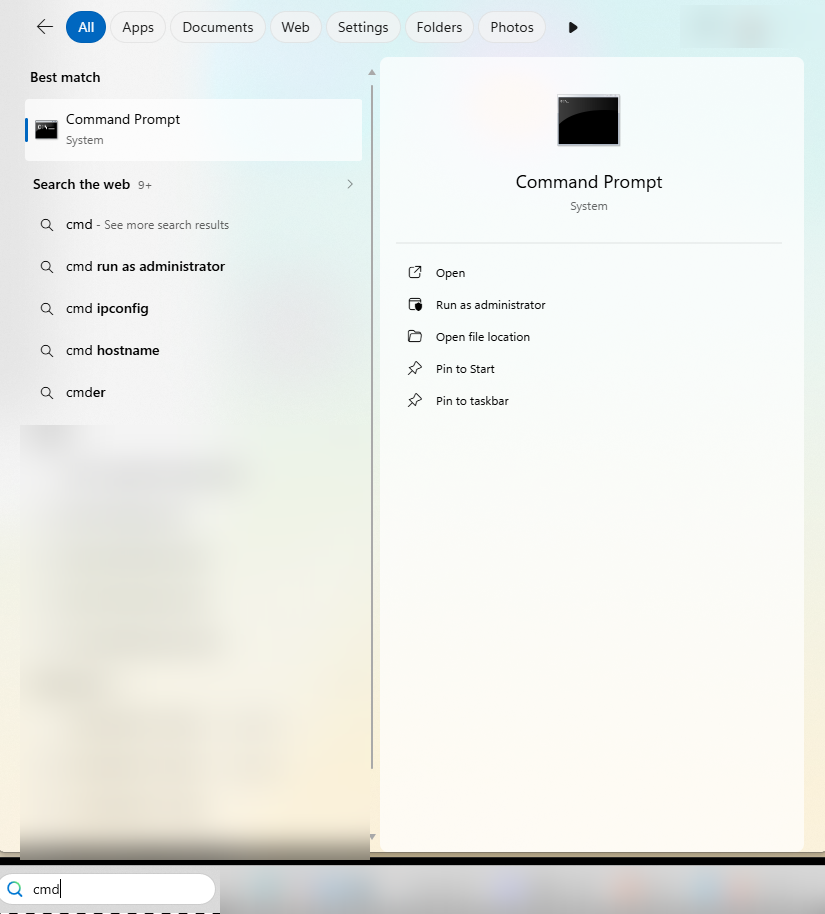
Why this matters. This is the way most people open it. If you only remember one way, make it this one.
02Open it from the Run box
Hold the Windows key and press R. A small box called Run pops up in the bottom-left corner of the screen.
Type cmd and press Enter. The same black window opens.
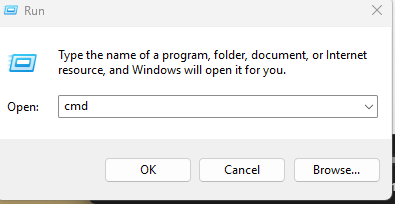
Why this matters. This is the fastest method once it is a habit: three key presses and no mouse. It also works on older Windows versions where the search box is different.
03Open it from the right-click Start menu
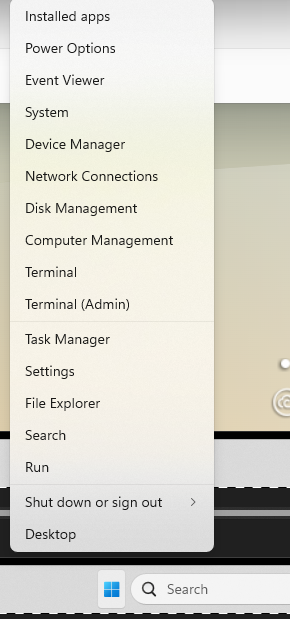
Right-click the Start button (the Windows logo on the taskbar), or press Windows key + X.
On Windows 11 choose Terminal (not “Terminal (Admin)”, which is for changing system settings). On Windows 10 choose Windows PowerShell (some updated Windows 10 versions say Terminal). Both are text windows where the commands in our lessons work, including ping, ipconfig and tracert.
Command PromptIn plain words: A window where you type instructions instead of clicking. The shortcut name is cmd.Technical: Windows’ text-mode shell (cmd.exe). PowerShell is a newer one. On a Mac the equivalent is Terminal.Click for the full glossary entry or PowerShell? They look nearly the same and are two different programs. Command Prompt is the older one, and it is the one our lessons show. PowerShell is newer and more powerful. For every command in our beginner lessons, either one works. If a lesson ever says “Command Prompt only,” it will tell you.
04Make a one-click icon
Open the Start search again, type cmd, and instead of pressing Enter, right-click Command PromptIn plain words: A window where you type instructions instead of clicking. The shortcut name is cmd.Technical: Windows’ text-mode shell (cmd.exe). PowerShell is a newer one. On a Mac the equivalent is Terminal.Click for the full glossary entry in the results and choose Pin to taskbar (or Pin to Start).
Now there is a small black icon on your taskbar. Click it any time. To put one on the desktop instead, right-click an empty part of the desktop, choose New → Shortcut, type cmd.exe, click Next, give it a name like “Command Prompt,” and click Finish.
Why this matters. Most people can click an icon but will not remember a key combination. If you are setting this up for a parent or a kid, this is the step that makes it stick. The traceroute lesson goes one step further and shows how to make an icon that runs a whole set of tests.
05Type your first command
Click in the black window so you can see a blinking cursor, type the line below exactly, and press Enter.
> echo Hello from StashGrid
The window should answer with the same words back. That is a command working. Now try one that is actually useful:
> ipconfig
You will get a list of your network connections. Look for the line that says IPv4 AddressIn plain words: A device’s street address on a network: four numbers separated by dots, like 192.168.1.37.Technical: A 32-bit number (IPv4), written as four octets. It combines which network the device is on and which device it is on that network.Click for the full glossary entry. That is your computer’s address on your home network, and it is the starting point for our subnetting and DHCP lessons. When you are finished, type exit and press Enter, or click the X to close the window.
Nothing you typed here can break the computer. Reading is safe. The commands that change things are the ones that ask for a password. — Nyx
What you learned
- Windows key, then cmd — the everyday way to open a command promptIn plain words: A window where you type instructions instead of clicking. The shortcut name is cmd.Technical: Windows’ text-mode shell (cmd.exe). PowerShell is a newer one. On a Mac the equivalent is Terminal.Click for the full glossary entry
- Windows key + R, then cmd — the quick way, no mouse needed
- Right-click Start — gets you Terminal or PowerShell, which also work for our commands
- Pin to taskbar — turns it into a one-click icon
Tried it? Tell us
Nova drafted this lesson from Steven’s ideas. If a step broke, looked different on your screen, or you know a simpler way, tell us. Screens change between Windows and Mac versions, so your menus may not match exactly.
Go deeper
- Networking glossary — plain-English definitions for every term in these lessons
- Network tools on a Mac — the same idea with Terminal
- Traceroute on Windows — build a one-click network check
Original walkthrough written from Windows 10 and Windows 11 behaviour. The screenshots still need to be added, and the menu names are the ones Microsoft uses today. If something does not match what your computer does, tell me and I will fix it.