Traceroute on Windows (tracert): See Every Hop Between You and a Website
0 / 7 steps
The goal
By the end you will have run tracert against a real website, read every column of the result, tried the switches that change it, compared it with pathping, and built a one-click .bat file that runs a small network check for you.
Windows only. tracert is the Windows command. Macs and Linux use traceroute, which behaves a little differently (see the Mac page). Everything here only sends harmless test packetsIn plain words: A small parcel of data with an address on it. Everything you do online is sent as lots of tiny parcels.Technical: A unit of data with a header (addresses, TTL, protocol) and a payload. Large data is split into packets and reassembled at the destination.Click for the full glossary entry from your own computer.
How it works in one line. tracert sends ICMPIn plain words: The internet’s way of sending tiny “are you there?” and “that did not arrive” notes between devices.Technical: Internet Control Message Protocol. Carries status and error messages. ping and tracert both use it. Some routers and firewalls ignore it on purpose, so silence is not always a fault.Click for the full glossary entry test packets (small “are you there?” messages, definition here) toward a website, one routerIn plain words: The box that connects your home to the internet and passes data between networks.Technical: Forwards packets between networks. At home it is usually also the Wi-Fi access point and the DHCP server.Click for the full glossary entry at a time, and every router on the way reports back who it is and how long the trip took.
Which one should I use: tracert or pathping?
- tracert — finishes in seconds and draws the map of the path. Use it first, every time.
- pathping — takes a few minutes because it measures each stop over and over, then reports how many packets each stop dropped. Use it second, when tracert shows a slow spot or you suspect a bad connection and want proof of where.
Words in this lesson
Hover (or tap and hold) a dotted word for a quick definition. Every word is also in the StashGrid glossary.
- ICMP — tiny status messages devices send each other
- Hop — one jump from one router to the next
- TTL — a countdown number on every packet; each router lowers it by one
- Latency — how long a packet takes, in milliseconds (ms)
- Packet loss — packets that never got an answer
- Command switch — an extra word like -d that changes how a command behaves
- Batch (.bat) file — a saved list of commands that runs with a double-click
Why this lesson. When a website is slow or will not load, the question is always the same: is the problem my computer, my Wi-Fi, my internet provider, or the website? Tracert shows the road from you to the site, so you can see where the trip slows down or stops, without guessing.
Tracert looks like it just draws a line. It does, the way a map draws a road. The skill is knowing which stops are meaningless and which one is the traffic jam. — Nyx
Before you start. You need a Windows computer and a working internet connection. If you have never opened a command promptIn plain words: A window where you type instructions instead of clicking. The shortcut name is cmd.Technical: Windows’ text-mode shell (cmd.exe). PowerShell is a newer one. On a Mac the equivalent is Terminal.Click for the full glossary entry, start with How to open a command prompt on Windows; it takes five minutes and has pictures. You do not need to be an administrator.
Steps
01Open a command prompt and run your first tracert
Open a command promptIn plain words: A window where you type instructions instead of clicking. The shortcut name is cmd.Technical: Windows’ text-mode shell (cmd.exe). PowerShell is a newer one. On a Mac the equivalent is Terminal.Click for the full glossary entry (press the Windows key, type cmd, press Enter; pictures here). Then type this and press Enter.
> tracert example.com
Lines appear one at a time. It can take 10 to 30 seconds. When it prints Trace complete. it is done. Do not worry if you see a few * lines; step 3 explains them.
Why this matters. This one command is the first thing every network technician reaches for. It costs nothing and it only sends a handful of tiny packetsIn plain words: A small parcel of data with an address on it. Everything you do online is sent as lots of tiny parcels.Technical: A unit of data with a header (addresses, TTL, protocol) and a payload. Large data is split into packets and reassembled at the destination.Click for the full glossary entry.
02Read the output one column at a time
Here is a sample result. Yours will have different numbers and names; the layout is what matters.
Tracing route to example.com [93.184.216.34]
over a maximum of 30 hops:

  1    <1 ms    <1 ms    <1 ms  192.168.1.1
  2     9 ms     8 ms    10 ms  10.20.0.1
  3    12 ms    11 ms    14 ms  isp-core-1.example.net [203.0.113.5]
  4     *        *        *     Request timed out.
  5    24 ms    23 ms    25 ms  203.0.113.90
  6    31 ms    30 ms    32 ms  93.184.216.34

Trace complete.
- First column (1, 2, 3…) — the hopIn plain words: One stop along the road between you and a website, like one town on a road trip.Technical: One router-to-router jump. A path of 12 hops passes through 12 routers or gateways.Click for the full glossary entry number: which stop along the road this is. Hop 1 is almost always your own routerIn plain words: The box that connects your home to the internet and passes data between networks.Technical: Forwards packets between networks. At home it is usually also the Wi-Fi access point and the DHCP server.Click for the full glossary entry.
- Columns 2, 3 and 4 (the three times) — tracertIn plain words: Shows the road your data takes to a website, one stop at a time.Technical: The Windows traceroute command. Sends ICMP echo requests with rising TTL values so each router on the path reports back. Macs and Linux use traceroute.Click for the full glossary entry sends three test packetsIn plain words: A small parcel of data with an address on it. Everything you do online is sent as lots of tiny parcels.Technical: A unit of data with a header (addresses, TTL, protocol) and a payload. Large data is split into packets and reassembled at the destination.Click for the full glossary entry to every hop. Column 2 is the time for the first packet, column 3 is the second, column 4 is the third. Each is in milliseconds (ms). Three samples let you see whether the speed is steady or jumpy.
- <1 ms — faster than the clock can measure, so under one millisecond. Normal for your own router.
- Last column — who answered. A name with an address in square brackets, or just the address. 192.168.x.x, 10.x.x.x are private addressesIn plain words: An address used inside your home or office only, like an apartment number: many buildings reuse the same ones.Technical: Reserved ranges: 10.0.0.0/8, 172.16.0.0/12 and 192.168.0.0/16. Not routable across the internet.Click for the full glossary entry (your router, your provider’s network); see the subnetting lesson for why.
- The final line is the website itself. If the last hop answers, you reached it.
Why this matters. Reading it this way, you can say things like “it is fine to hop 2, then it gets slow at hop 5,” instead of “the internet is broken.” Each number is a clue about where the delay lives.
03Understand the stars and the slow hops
A line of * * * and Request timed out means that routerIn plain words: The box that connects your home to the internet and passes data between networks.Technical: Forwards packets between networks. At home it is usually also the Wi-Fi access point and the DHCP server.Click for the full glossary entry did not answer that test packetIn plain words: A small parcel of data with an address on it. Everything you do online is sent as lots of tiny parcels.Technical: A unit of data with a header (addresses, TTL, protocol) and a payload. Large data is split into packets and reassembled at the destination.Click for the full glossary entry in time. It does not automatically mean a problem.
- Stars in the middle, but later hopsIn plain words: One stop along the road between you and a website, like one town on a road trip.Technical: One router-to-router jump. A path of 12 hops passes through 12 routers or gateways.Click for the full glossary entry answer fine — harmless. That router just does not reply to these test packets, but it still forwards your traffic.
- Stars on every line from some hop to the end — the path is blocked or broken at or after that hop, or the destination ignores tracertIn plain words: Shows the road your data takes to a website, one stop at a time.Technical: The Windows traceroute command. Sends ICMP echo requests with rising TTL values so each router on the path reports back. Macs and Linux use traceroute.Click for the full glossary entry on purpose (many do).
- One slow hop, then speed returns — usually harmless; the router is busy answering you but forwarding quickly.
- Time jumps and stays high from one hop to the end — that is where the delay really starts.
The trap is blaming the first hop that looks bad. Look at the last hop. If the last hop is fast, the road is fine whatever the middle says. — Nyx
04Try the switches
A switchIn plain words: A little extra word after a command that changes how it works, like setting the oven to “fan.”Technical: An argument starting with - or / that modifies a command, for example the -d in tracert -d. Each command has its own list.Click for the full glossary entry (also called an option) is a short extra word after the command that changes how it behaves. -d is the famous one, but tracertIn plain words: Shows the road your data takes to a website, one stop at a time.Technical: The Windows traceroute command. Sends ICMP echo requests with rising TTL values so each router on the path reports back. Macs and Linux use traceroute.Click for the full glossary entry has more. This is the full list for Windows:
- -d — do not look up names. Only shows addresses. It is much faster, because tracert skips asking DNSIn plain words: The internet’s phone book. You type an easy name like stashgrid.ai, and DNS looks up the number address that computers really use, the way a street address tells the mail carrier where to go.Technical: Domain Name System. A worldwide set of servers that turns names into IP addresses. Your device asks a DNS server (usually your router or your provider) every time you visit a site.Click for the full glossary entry “what is this called?” at every hopIn plain words: One stop along the road between you and a website, like one town on a road trip.Technical: One router-to-router jump. A path of 12 hops passes through 12 routers or gateways.Click for the full glossary entry. Use it when a trace seems to hang, or when you want clean output to copy.
- -h number — maximum hops. The default is 30. -h 10 stops after 10 stops. Use it when you only care about the first part of the path.
- -w milliseconds — how long to wait for each reply before giving up. The default is 4000 (four seconds). Lower it, for example -w 1000, to finish faster when many hops are silent.
- -4 or -6 — force the old (IPv4) or the new (IPv6) kind of address. Use them when you want to test one specifically.
- -j host-list — ask the packetsIn plain words: A small parcel of data with an address on it. Everything you do online is sent as lots of tiny parcels.Technical: A unit of data with a header (addresses, TTL, protocol) and a payload. Large data is split into packets and reassembled at the destination.Click for the full glossary entry to follow a route you choose (IPv4 only). Most networks ignore this on purpose, so beginners can skip it.
- -R and -S address — IPv6 extras: trace the round trip, and choose which of your addresses to send from. You will rarely need them.
You can combine them. Try this one:
> tracert -d -h 15 -w 1000 example.com
It should finish noticeably faster than step 1 and show addresses only. To see the built-in help, type tracert by itself and press Enter.
Why this matters. Knowing the switches turns tracert from one trick into a tool: faster, shorter, or aimed at IPv6. You do not need to memorise them; you need to know they exist and where to look.
05Run pathping to find where packets are lost
Now the slower, more detailed cousin. Type this and be patient: it takes a few minutes.
> pathping -n -q 10 -h 15 example.com
First it prints the route, just like tracertIn plain words: Shows the road your data takes to a website, one stop at a time.Technical: The Windows traceroute command. Sends ICMP echo requests with rising TTL values so each router on the path reports back. Macs and Linux use traceroute.Click for the full glossary entry. Then it says Computing statistics and counts up. When it finishes you get a table with, for each hopIn plain words: One stop along the road between you and a website, like one town on a road trip.Technical: One router-to-router jump. A path of 12 hops passes through 12 routers or gateways.Click for the full glossary entry, how many packetsIn plain words: A small parcel of data with an address on it. Everything you do online is sent as lots of tiny parcels.Technical: A unit of data with a header (addresses, TTL, protocol) and a payload. Large data is split into packets and reassembled at the destination.Click for the full glossary entry were lost. -n means no name lookups, -q 10 sends 10 test packets per hop instead of 100 (a quicker, rougher result), and -h 15 stops at 15 hops.
Other pathping switchesIn plain words: A little extra word after a command that changes how it works, like setting the oven to “fan.”Technical: An argument starting with - or / that modifies a command, for example the -d in tracert -d. Each command has its own list.Click for the full glossary entry you may meet: -p (milliseconds between packets), -w (wait time), -i (choose your source address), -4 and -6.
How to read the loss column. Loss at one hop that disappears later is usually that routerIn plain words: The box that connects your home to the internet and passes data between networks.Technical: Forwards packets between networks. At home it is usually also the Wi-Fi access point and the DHCP server.Click for the full glossary entry ignoring the test (harmless). Loss that starts at a hop and continues to the end is real: the problem is at or just after that hop. This is the evidence you can show your internet provider.
06Make a one-click network check (.bat file)
A .bat fileIn plain words: A saved to-do list for the computer. Double-click it and it does the steps in order.Technical: A plain-text script of command prompt commands, run in sequence. It can run anything, so only run ones you wrote or have read.Click for the full glossary entry (batch file) is a plain text file of commands that runs them in order when you double-click it. This one shows your address, tests the internet, and traces a website, then waits so you can read it.
- Open Notepad (Windows key, type notepad, Enter).
- Copy the lines below and paste them in:
@echo off
title StashGrid network check
echo ===== Your address =====
ipconfig | findstr /i "IPv4 Gateway"
echo.
echo ===== Can I reach the internet? =====
ping -n 4 1.1.1.1
echo.
echo ===== Path to a website =====
tracert -d -h 15 -w 1000 example.com
echo.
pause
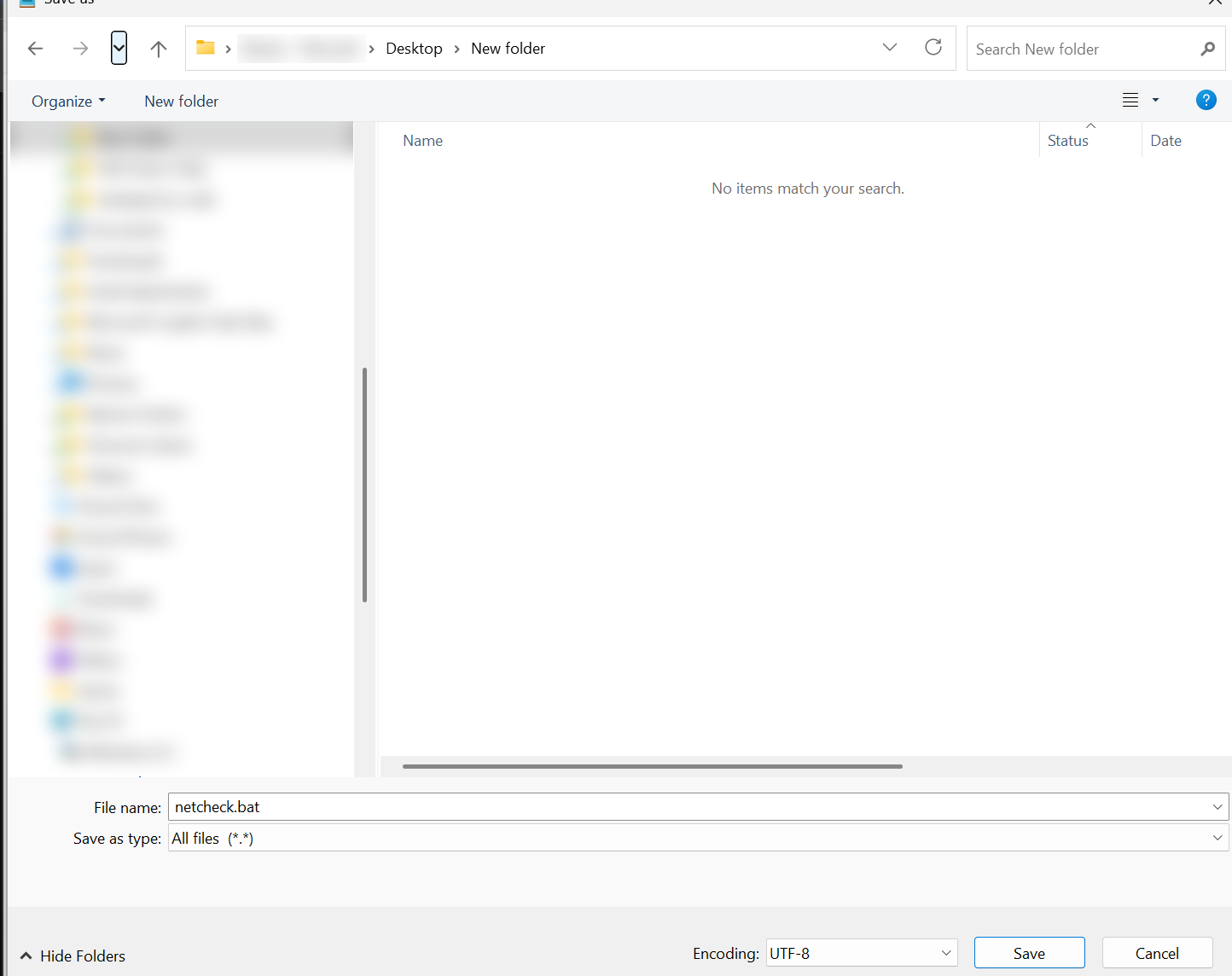
- Choose File → Save As. Pick the Desktop. Next to Save as type, choose All files. Name it netcheck.bat and click Save. (If you leave it on Text Documents it will be saved as netcheck.bat.txt and will not work.)
- Double-click netcheck.bat on the desktop. A black window runs the tests and says “Press any key to continue” when finished.
What each line does. @echo off hides the commands so only results show. title names the window. echo prints a heading. ipconfig | findstr shows only the lines with your address and gatewayIn plain words: The door out of your network. It is your router.Technical: The router address your device sends traffic to when the destination is not on its own subnet. At home, often 192.168.1.1.Click for the full glossary entry. ping -n 4 sends four test packetsIn plain words: A small parcel of data with an address on it. Everything you do online is sent as lots of tiny parcels.Technical: A unit of data with a header (addresses, TTL, protocol) and a payload. Large data is split into packets and reassembled at the destination.Click for the full glossary entry to 1.1.1.1. pause keeps the window open at the end. Change example.com to any site you are checking.
Stay safe with .bat files. A .bat file can run anything, including deleting files. Only run ones you wrote or have read line by line yourself. Never run one that arrived in an email, a message or a download, even from someone you know.
07Put it somewhere you can click
Right-click netcheck.bat and choose Show more options → Create shortcut (on Windows 10 it is just Create shortcut). Rename the shortcut to something friendly like Check my internet. For the taskbar, drag the shortcut onto it, or right-click it and choose Pin to taskbar if it is offered.
Now anyone in the house, kids and parents included, can click one icon and get a readable internet check. If they call you, they can read you the numbers.
This is the whole difference between a technician and a household. One has the icon. — Nyx
What you learned
- tracert — draws the path to a site, hopIn plain words: One stop along the road between you and a website, like one town on a road trip.Technical: One router-to-router jump. A path of 12 hops passes through 12 routers or gateways.Click for the full glossary entry by hop, using ICMPIn plain words: The internet’s way of sending tiny “are you there?” and “that did not arrive” notes between devices.Technical: Internet Control Message Protocol. Carries status and error messages. ping and tracert both use it. Some routers and firewalls ignore it on purpose, so silence is not always a fault.Click for the full glossary entry test packetsIn plain words: A small parcel of data with an address on it. Everything you do online is sent as lots of tiny parcels.Technical: A unit of data with a header (addresses, TTL, protocol) and a payload. Large data is split into packets and reassembled at the destination.Click for the full glossary entry
- Three time columns — the first, second and third test packet to each hop
- Stars — one hop silent is usually harmless; silence to the end is the clue
- -d -h -w -4 -6 — no names, fewer hops, shorter wait, pick IPv4 or IPv6
- pathping — slower, but shows packet lossIn plain words: Messages that were sent but never answered, like letters that get lost in the mail.Technical: The percentage of packets that get no reply. Steady loss to the final destination causes stutter, freezes and slow pages.Click for the full glossary entry at every hop
- .bat file — a one-click shortcut for a set of commands
Read the official spec
These are the documents the engineers wrote. They are free and dense, so use them as a reference, not bedtime reading.
- RFC 792 — ICMP, the messages tracert and ping use, including “time exceeded” and echo
Tried it? Tell us
Nova drafted this lesson from Steven’s ideas. If a step broke, looked different on your screen, or you know a simpler way, tell us. Screens change between Windows and Mac versions, so your menus may not match exactly.
NextLab 13: DNS Diagnostics with Wireshark→
Go deeper
- How to open a command prompt — with pictures
- Networking glossary — ICMP, TTLIn plain words: A countdown stamped on every packet so it cannot wander the internet forever.Technical: A counter that drops by one at every router. At zero the router discards the packet and replies with an ICMP time-exceeded message. Traceroute uses this to make each router identify itself.Click for the full glossary entry, hop and more
- Lab 12: your first Wireshark capture — watch those ICMP packets on the wire
- What happens when you type a URL — the bigger picture
- Why is my game lagging — tracertIn plain words: Shows the road your data takes to a website, one stop at a time.Technical: The Windows traceroute command. Sends ICMP echo requests with rising TTL values so each router on the path reports back. Macs and Linux use traceroute.Click for the full glossary entry in real life
Original walkthrough. The commands and switchesIn plain words: A little extra word after a command that changes how it works, like setting the oven to “fan.”Technical: An argument starting with - or / that modifies a command, for example the -d in tracert -d. Each command has its own list.Click for the full glossary entry match Microsoft’s documentation for tracert and pathping; the .bat fileIn plain words: A saved to-do list for the computer. Double-click it and it does the steps in order.Technical: A plain-text script of command prompt commands, run in sequence. It can run anything, so only run ones you wrote or have read.Click for the full glossary entry and sample output have not yet been run end to end by a person. If something does not match what your computer does, tell me and I will fix it.